
banking
Reconciling your bank
Match your bank statement to your records so the books balance every month.
Last updated 12/09/2026
Reconciliation is the step that keeps your ledger honest: every bank statement line is matched to an invoice, bill or expense.
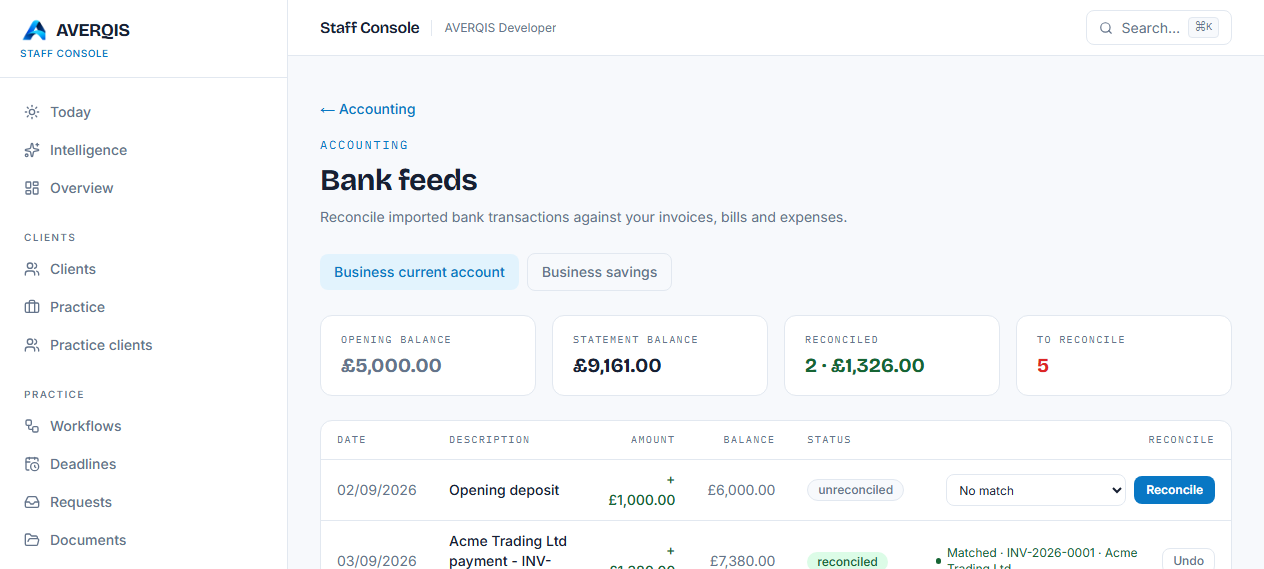
Open bank feeds
- Go to Accounting → Bank feeds.
- If you have more than one account, choose it from the tabs at the top.
What you see
- Opening balance — the balance when the account started.
- Statement balance — opening plus every imported transaction.
- Reconciled — how many lines you've matched and their total.
- To reconcile — lines still waiting.
Reconciling money in
For each positive (incoming) line:
- Find the line on the statement.
- In the Match dropdown, pick the matching invoice (for example INV-2026-0001 · Acme Trading).
- Click Reconcile.
Reconciling money out
For each negative (outgoing) line:
- Pick the matching bill or expense from the dropdown.
- Click Reconcile.
Undo
Every reconciled line shows a Matched · reference label with an Undo option — click it to un-reconcile and try a different match.
When the books balance
When To reconcile reaches zero (or you've deliberately left genuine unmatched items), the account is balanced and your figures line up with the bank.
Tips
- Reconcile at least monthly.
- If a line has no match (a bank charge, an interest payment), you can still reconcile it without a match.
- Use the Statement balance figure to check against your actual statement.
Related
- [Accounting overview](/guides/accounting-overview)
- [Reports](/guides/reports)