
payroll
Running payroll
Weekly, fortnightly and monthly pay runs with PAYE, National Insurance and pensions.
Last updated 12/09/2026
Run payroll for your clients with fully calculated payslips — tax, National Insurance and pension taken care of.
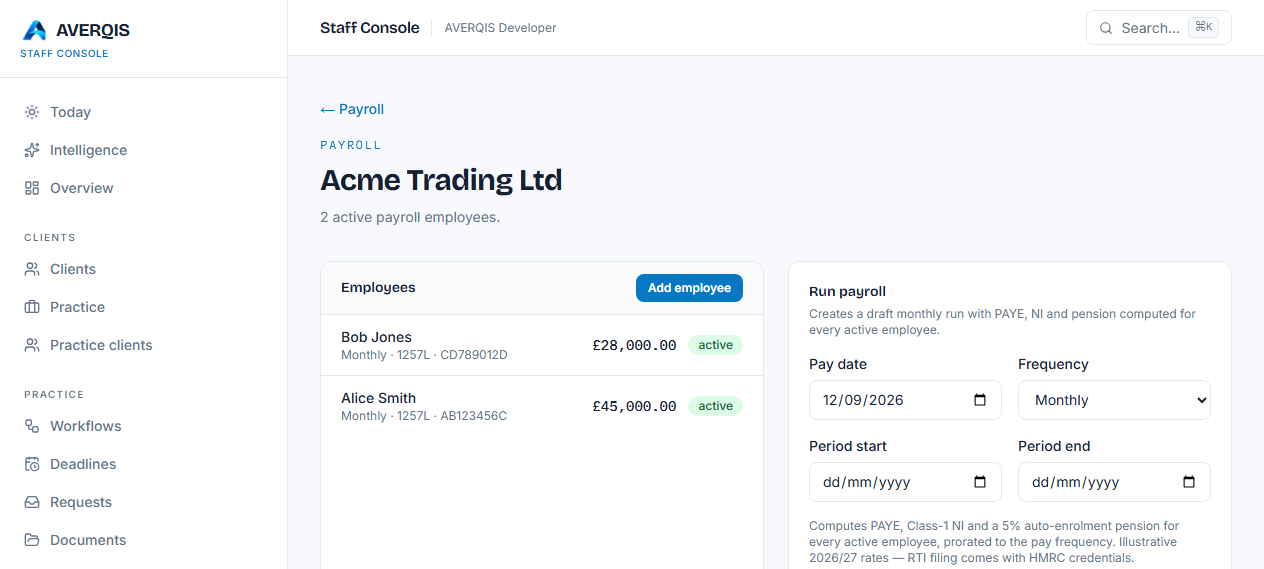
Add employees first
- Go to Payroll.
- Choose the client.
- Click Add employee and enter:
- First and last name.
- Email (used when emailing payslips).
- NI number.
- Tax code (defaults to 1257L).
- Annual salary.
- Pay frequency — Weekly, Fortnightly or Monthly.
Run a pay period
- In the client's payroll page, use the Run payroll form.
- Choose the frequency (weekly, fortnightly or monthly).
- Set the pay date and optional period start/end.
- Click Run payroll.
Every active employee gets a computed payslip:
- Gross pay for the period.
- Income tax (PAYE) — using the tax-code allowance and the 20% / 40% bands, prorated to the frequency.
- National Insurance — Class 1 (8% primary, 2% above the upper earnings limit).
- Pension — a 5% auto-enrolment contribution.
- Net pay — gross less tax, NI and pension.
Run history
Each run appears as a card with the frequency, pay date, totals and a full per-employee breakdown. You can see every past run for the client.
Frequency specifics
- Weekly — 52 periods a year; the annual salary and thresholds are divided by 52.
- Fortnightly — 26 periods.
- Monthly — 12 periods.
Tips
- Set the correct frequency on the employee so each period is prorated correctly.
- Run payroll on the same day each period for consistency.
- Email payslips and the run report straight from the run (see the Payslips guide).
Related
- [Sending payslips and reports](/guides/sending-payslips)
- [Importing payroll data](/guides/payroll-import)