
payroll
Sending payslips and reports
Email each employee their payslip and the client the run report — from your own mailbox if you set one up.
Last updated 12/09/2026
After running payroll you can send payslips to employees and a summary report to the client, without printing anything.
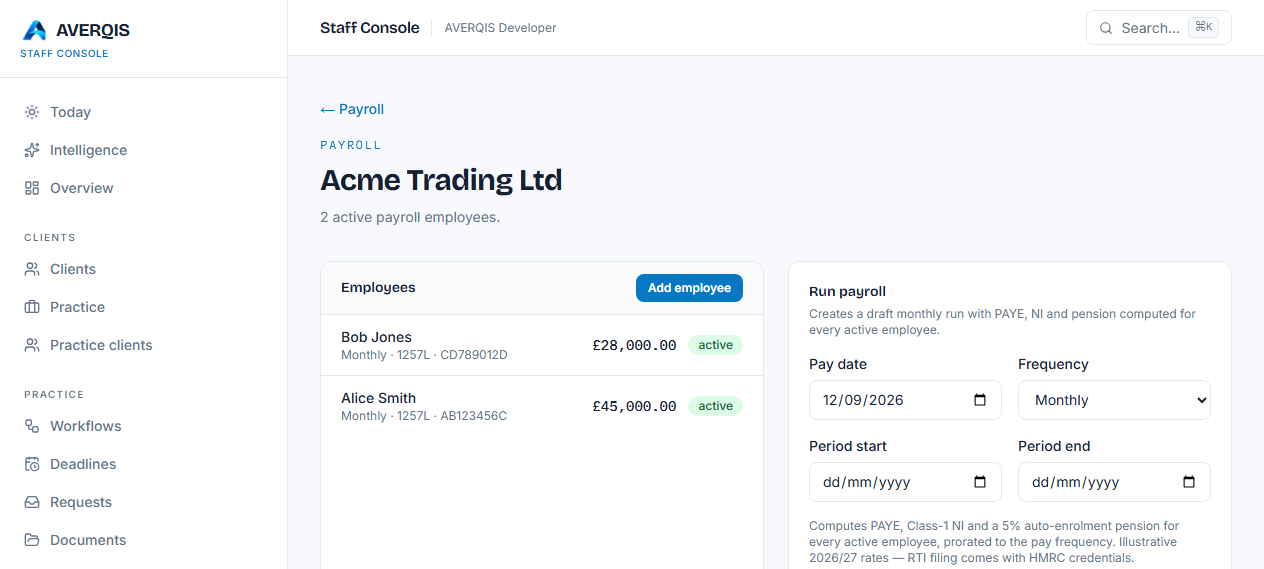
Email payslips to employees
- Open the payroll run (it appears after you run payroll for the client).
- Click Email payslips.
- Every employee with an email address receives their payslip by email. Employees without an email are skipped and logged.
Email the report to the client
- On the same run, click Email report.
- The run summary (gross, tax, NI and net per employee, plus totals) is emailed to the client's contact address.
Where emails come from
By default emails are sent from the AVERQIS platform mailer. If your practice wants payslips and reports to come from your own mailbox (the way payroll software works for agents):
- Go to System & Automation → Email settings.
- Enter your SMTP host, port, username and password, plus the sender email.
- Click Send test email to confirm the connection.
- Save — payroll emails now go out from your address.
The password is encrypted and never shown again. Leave the settings empty to use the platform mailer.
The email log
Every payslip and report email is recorded against the run with its recipient and status, so you always know what was sent and when.
Employee self-service
Employees can also view their payslips any time in the client portal — no need to keep the emails. See the portal guide.
Related
- [Running payroll](/guides/running-payroll)
- [Using the client portal](/guides/using-the-client-portal)
- [Email settings (SMTP)](/guides/email-settings-smtp)